USBFS — USB Filesystem
Overview
USBFS was introduced to simplify the use of USB storage devices within the PVM ecosystem, making the process usable by all users without requiring specialized technical knowledge.
Before USBFS, although PVM allowed USB devices to be attached and passed through to virtual machines, there was no built-in capability to use USB storage directly on the host through the PVM interface. As a result, administrators had to access the host operating system, run mount and unmount commands manually, and have sufficient Linux knowledge to use USB devices safely. In many cases, this process required assistance from the support team.
USBFS removes these obstacles by integrating USB storage into the PVM interface. With USBFS, you can:
- Create portable USB storage
- Safely mount and unmount USB partitions
- Use USB storage like any other type of PVM storage, without needing a terminal or command-line tools
This capability turns USB into a practical solution for portable backups, offline data transfer, and emergency scenarios — such as disaster recovery or situations requiring external, removable storage — while also reducing operational complexity and the risk of data loss from improperly disconnecting a device.
A USBFS object represents a specific partition on a USB device attached to a node, and allows PVM to automatically mount or unmount that partition as needed.
Supported Content Types
USBFS supports all content types available in PVM storage:
ISODataFlashBackupDriver
Prerequisites
Before creating a USBFS object, a USB object must already exist in the PVM interface.
A USB object represents a physical USB device attached to a specific node in the cluster.
Creating a USBFS
To create a USBFS object:
- Select an existing USB object, or create a new one representing the target USB device.
- Create a new USBFS object.
- Select the desired storage content type.
- Select the USB object.
- PVM scans the selected USB device and retrieves the list of available partitions.
- Select the partition to be managed by the USBFS object.
- Complete the creation process.
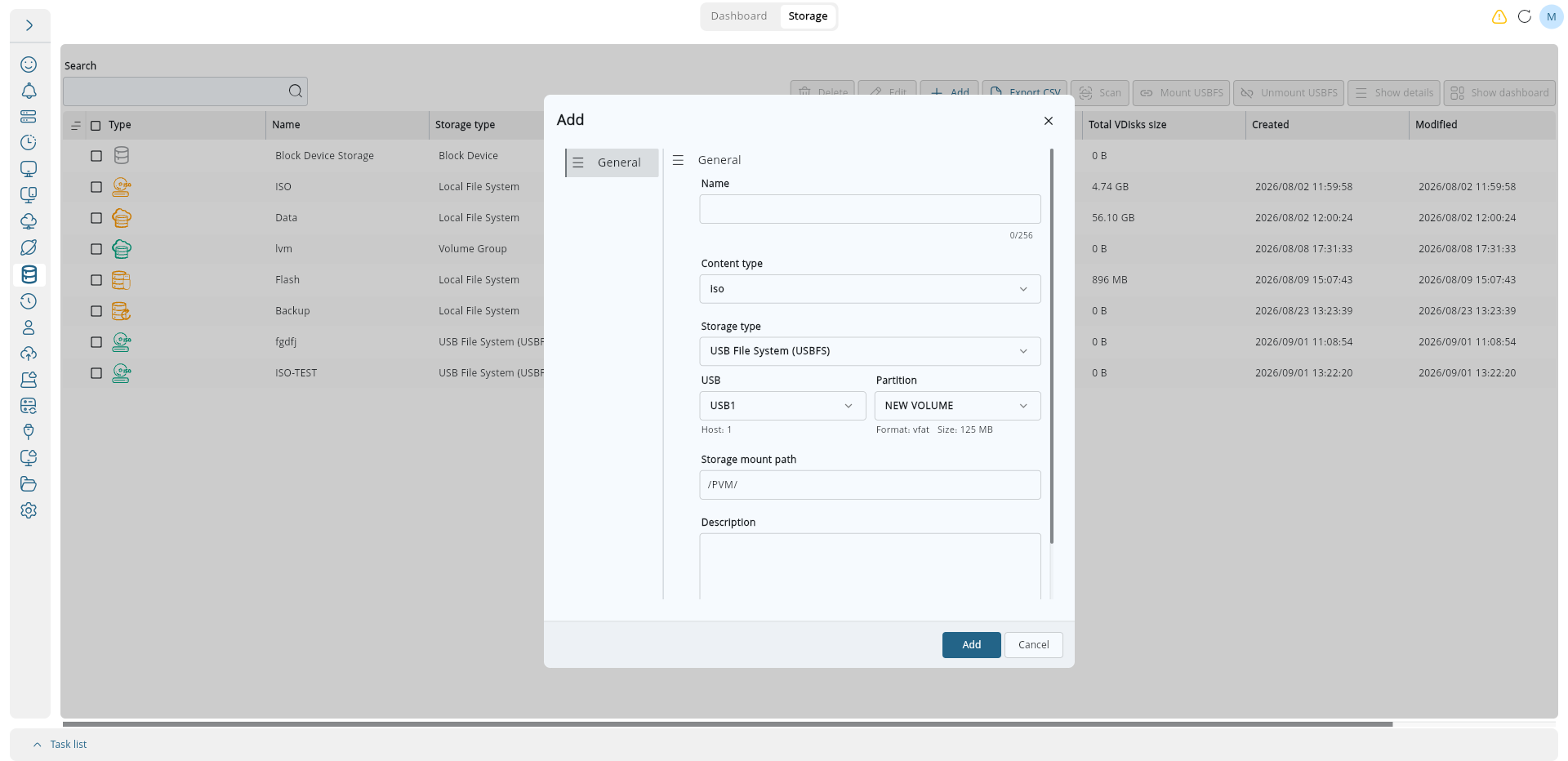
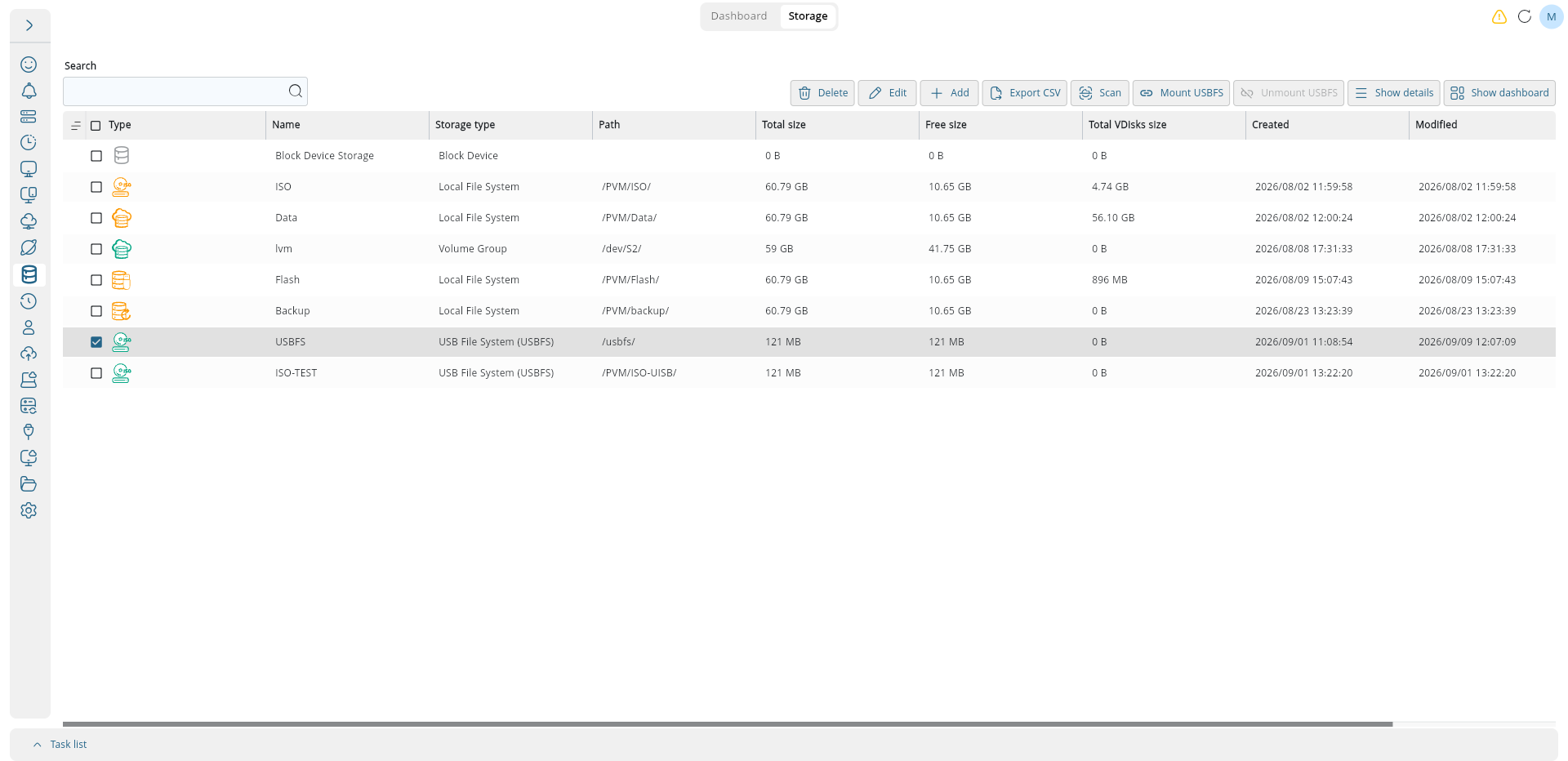
- Once the USBFS object has been created successfully, the selected partition is automatically mounted on the node the USB device is attached to.
Mount
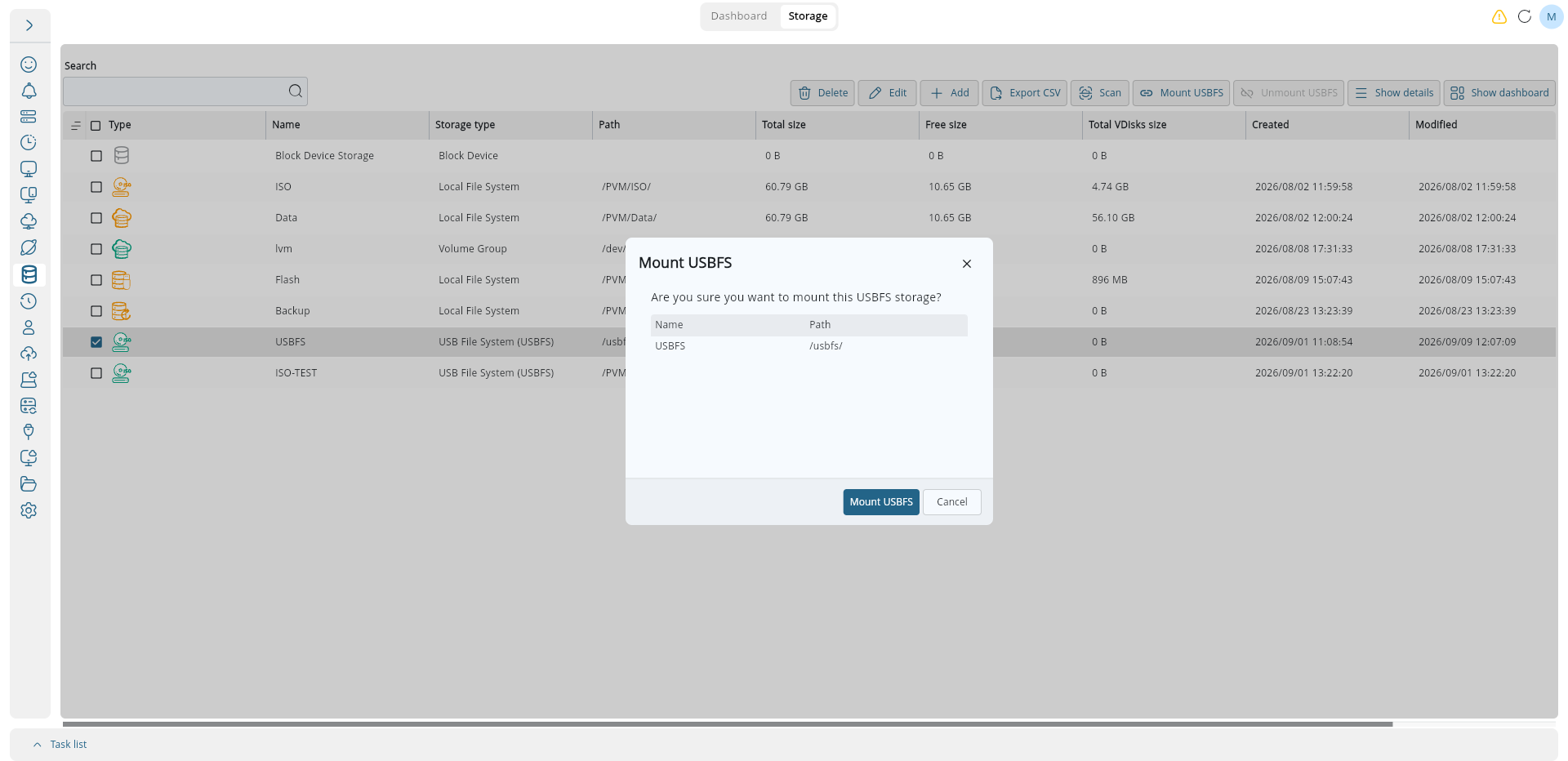
The USBFS object manages the mount state of the selected USB partition.
- The partition is mounted automatically when the object is created.
The following dialog confirms the mount operation before it is applied:
Unmount
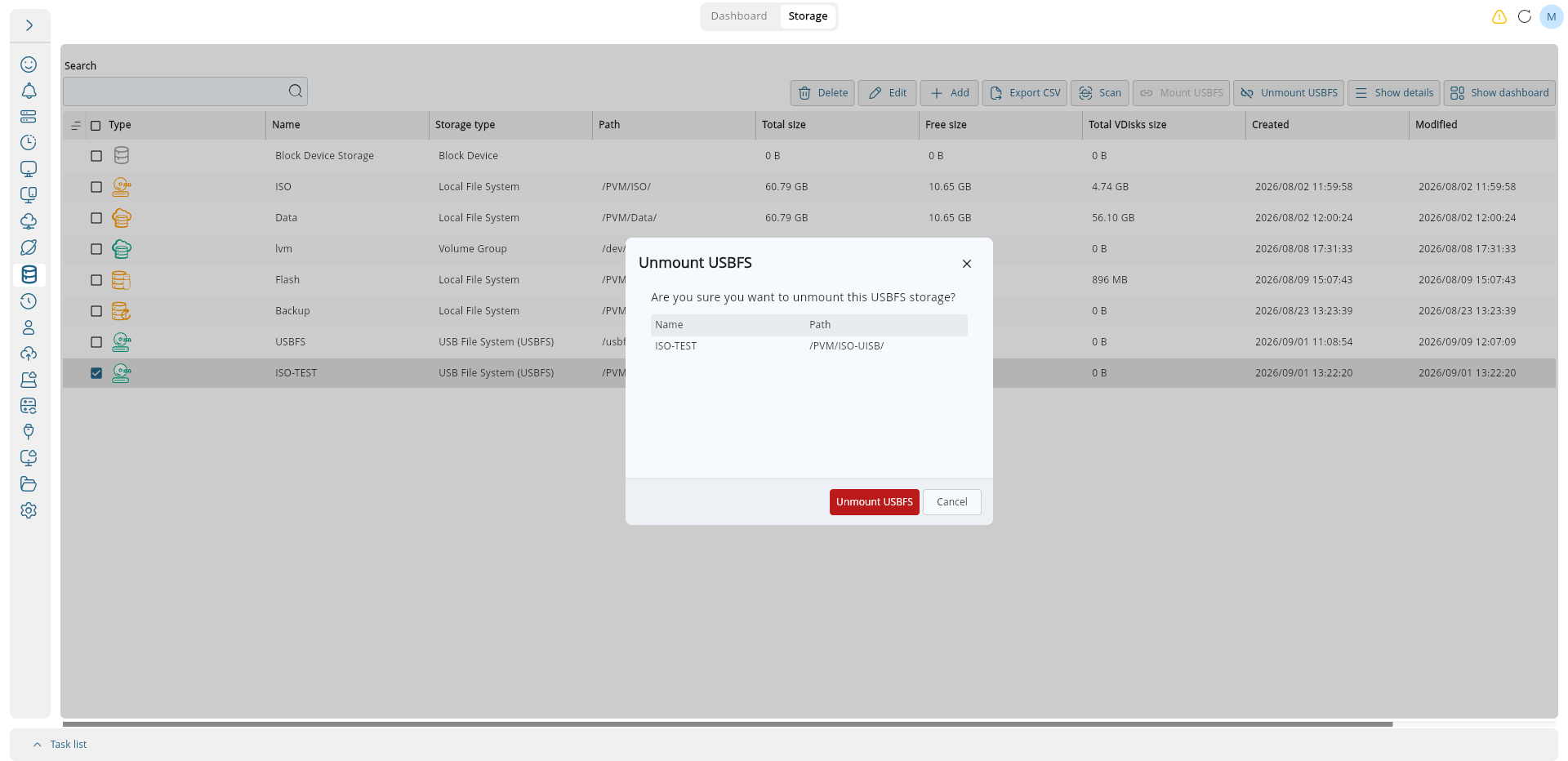
- The partition can be detached manually using the Unmount operation.
- If the partition is currently unmounted, it can be reconnected using the Mount operation.
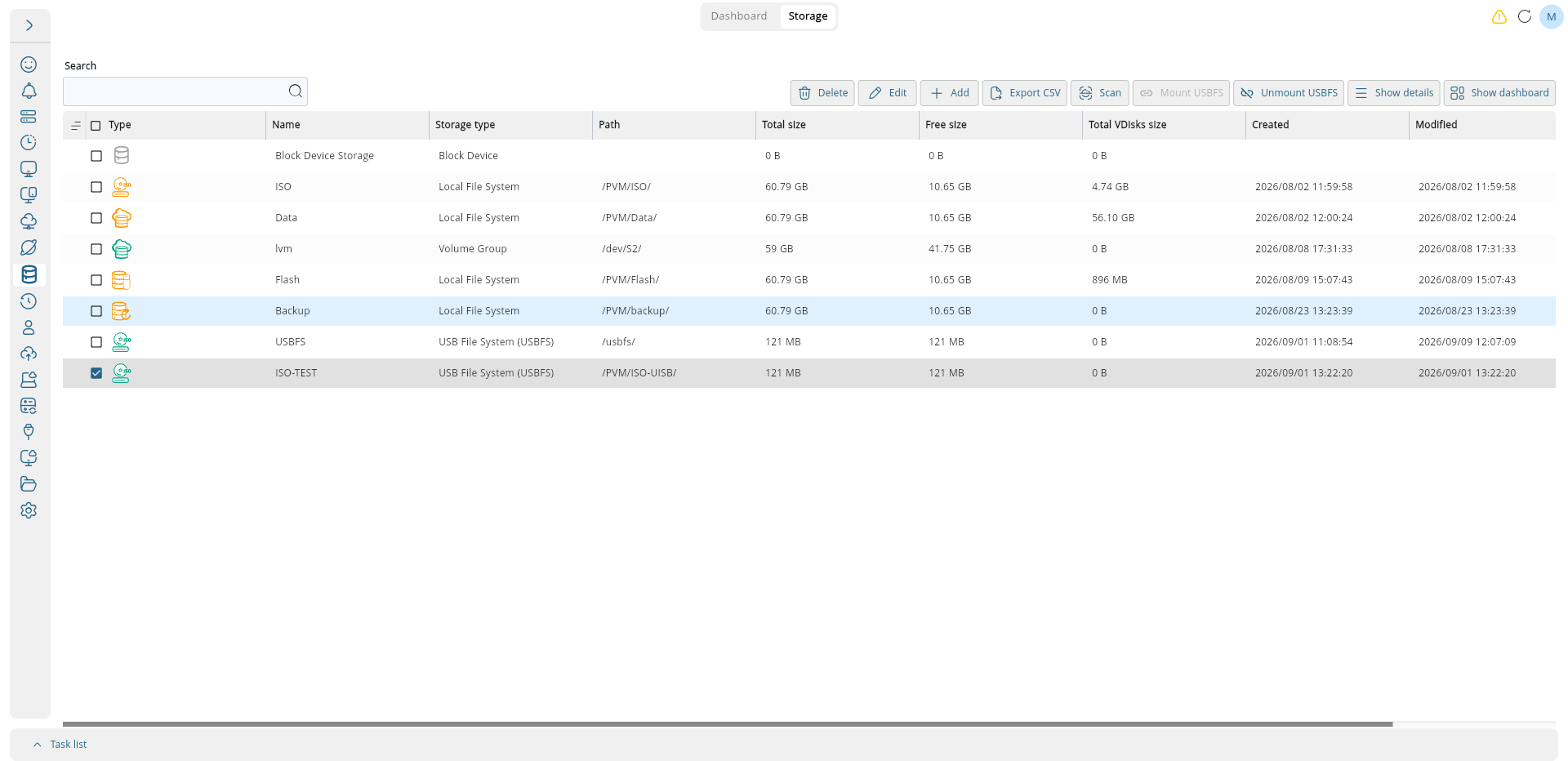
To detach a mounted partition, confirm the Unmount USBFS operation:
Safely Disconnecting a USB Device
Warning: Before physically disconnecting a USB device, the associated USBFS partition must be unmounted. Failing to unmount the filesystem before disconnecting the device may result in filesystem corruption or data loss.
Once the partition has been successfully unmounted, the USB device can be safely disconnected from the node.
Deleting a USBFS
When a USBFS object is deleted, the associated partition is automatically unmounted before the object is removed.
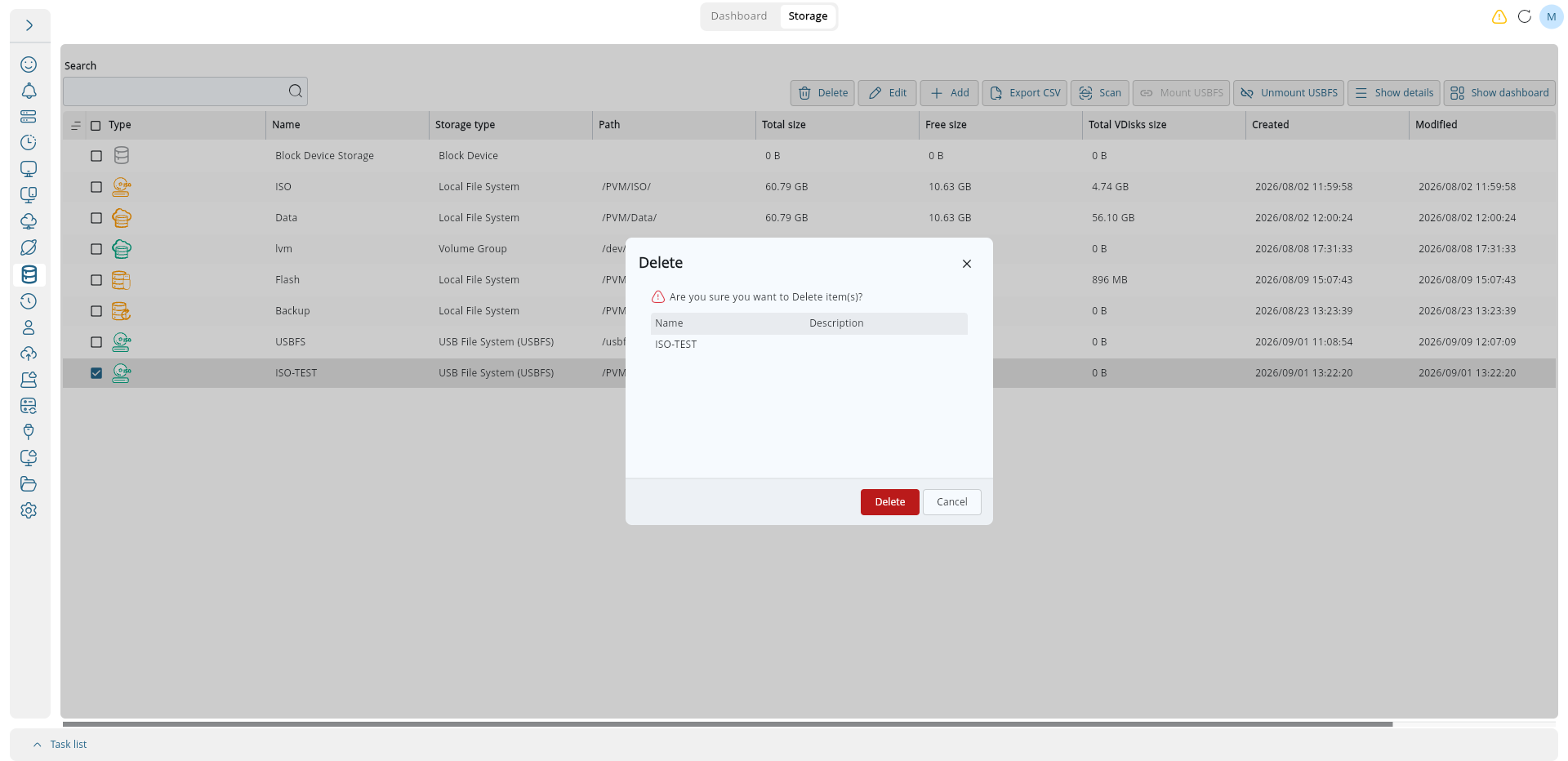
This behavior ensures that the filesystem is properly detached and helps prevent potential corruption.