Guide to Ticket Conversation and Status Changes
After submitting a ticket, a conversation page is created for that request. All messages from you and the specialist, attached files, and changes related to handling are kept on this page.
This guide explains how to enter the ticket conversation, send messages or files to the specialist, and track ticket status changes.
Entering the Ticket Conversation
To view the conversation, go to the Tickets section and click on the title or row of the desired ticket.
On the page that opens, the ticket title is displayed at the top and the Ticket Conversation section in the main area.
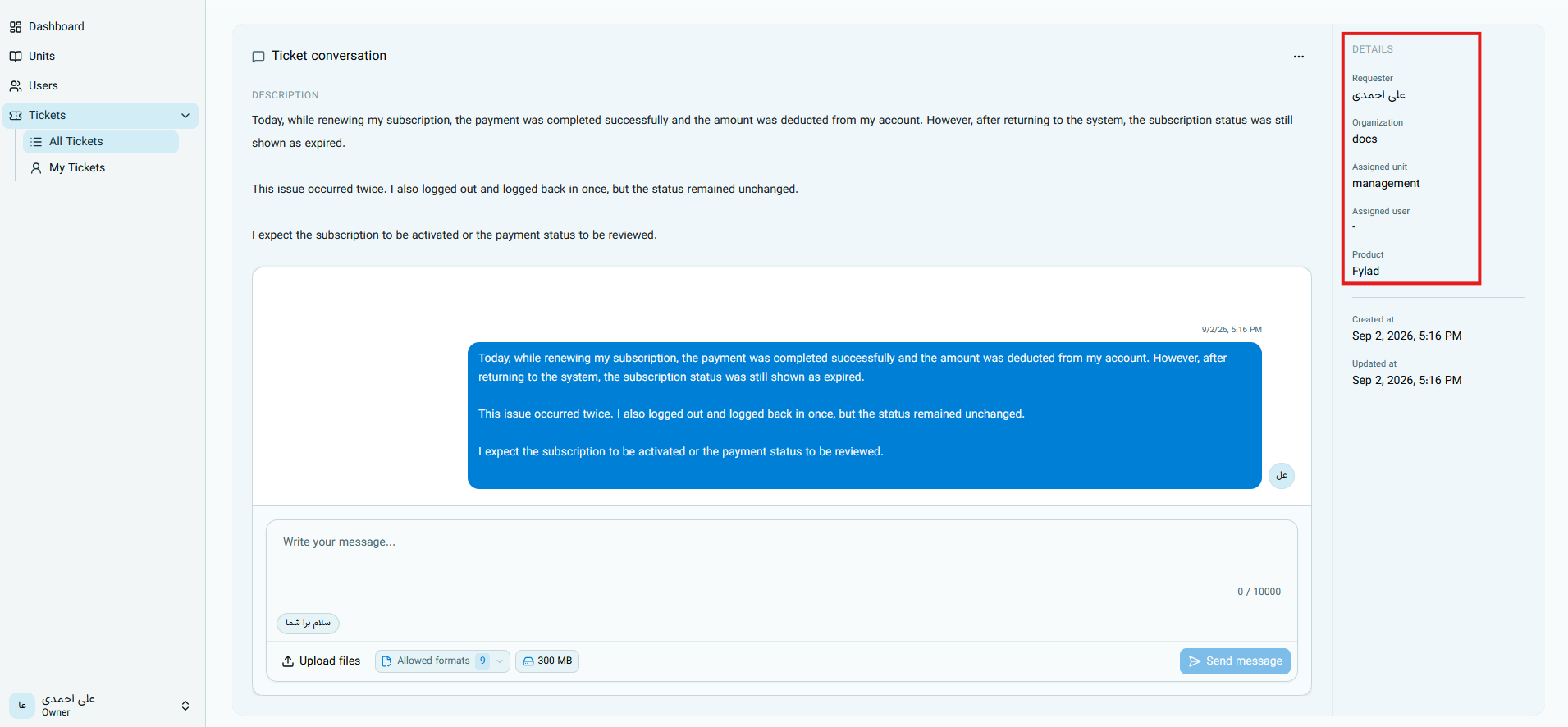
Viewing Ticket Details
In the Details column, you can view the main ticket information:
| Section | Meaning |
|---|---|
| Ticket submitter | Username of the user who created the request |
| Organization | Organization related to the ticket submitter |
| Responsible unit | Unit to which the request was sent |
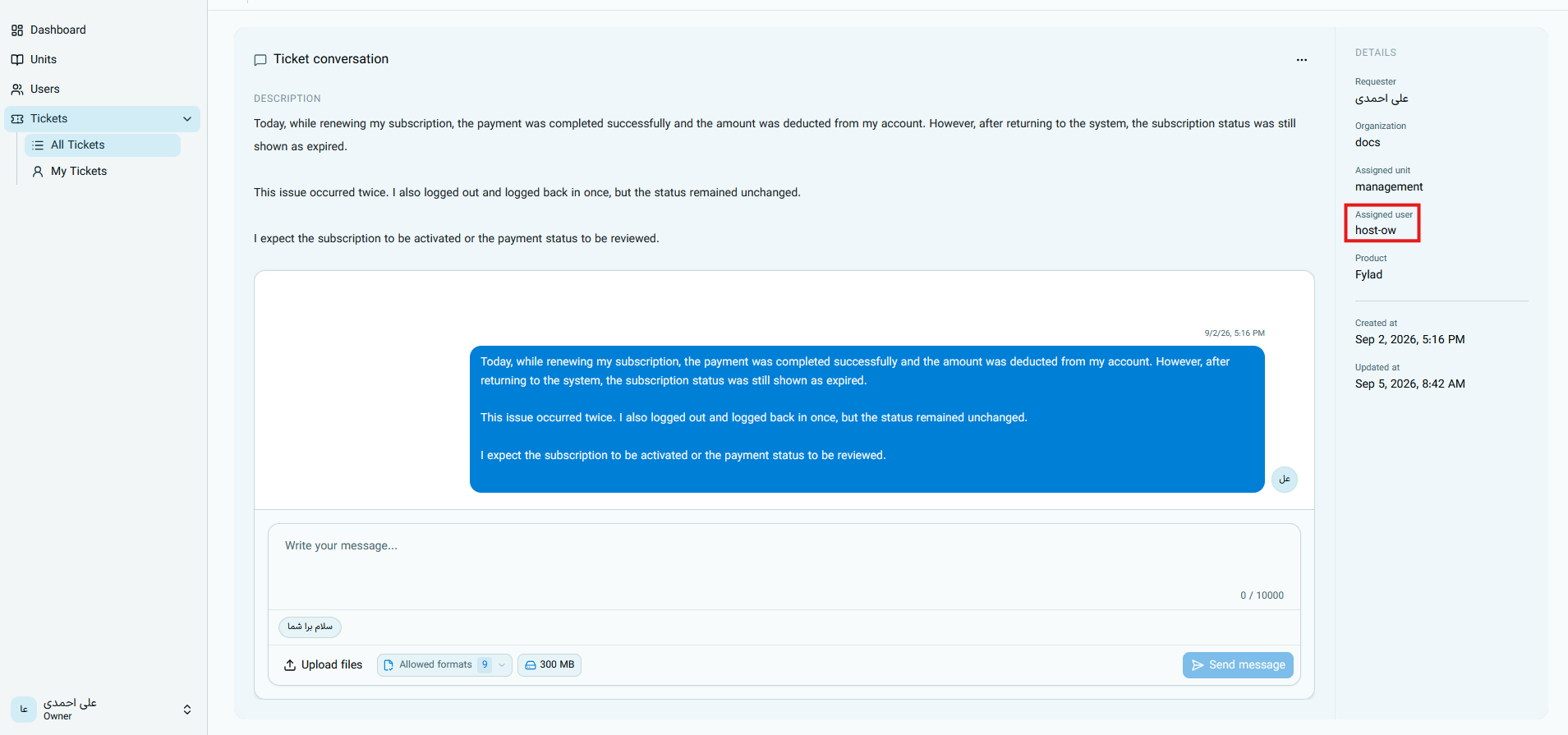
| Assigned specialist | Specialist who has taken charge of handling the ticket |
| Product | Product selected when submitting the ticket |
| Creation date | Initial ticket registration time |
| Update date | Time of the last ticket change or last effective activity on it |
If you see a dash (-) next to Assigned specialist, it means no specific specialist has accepted or been assigned to the ticket yet.
Getting to Know the Conversation Page Sections
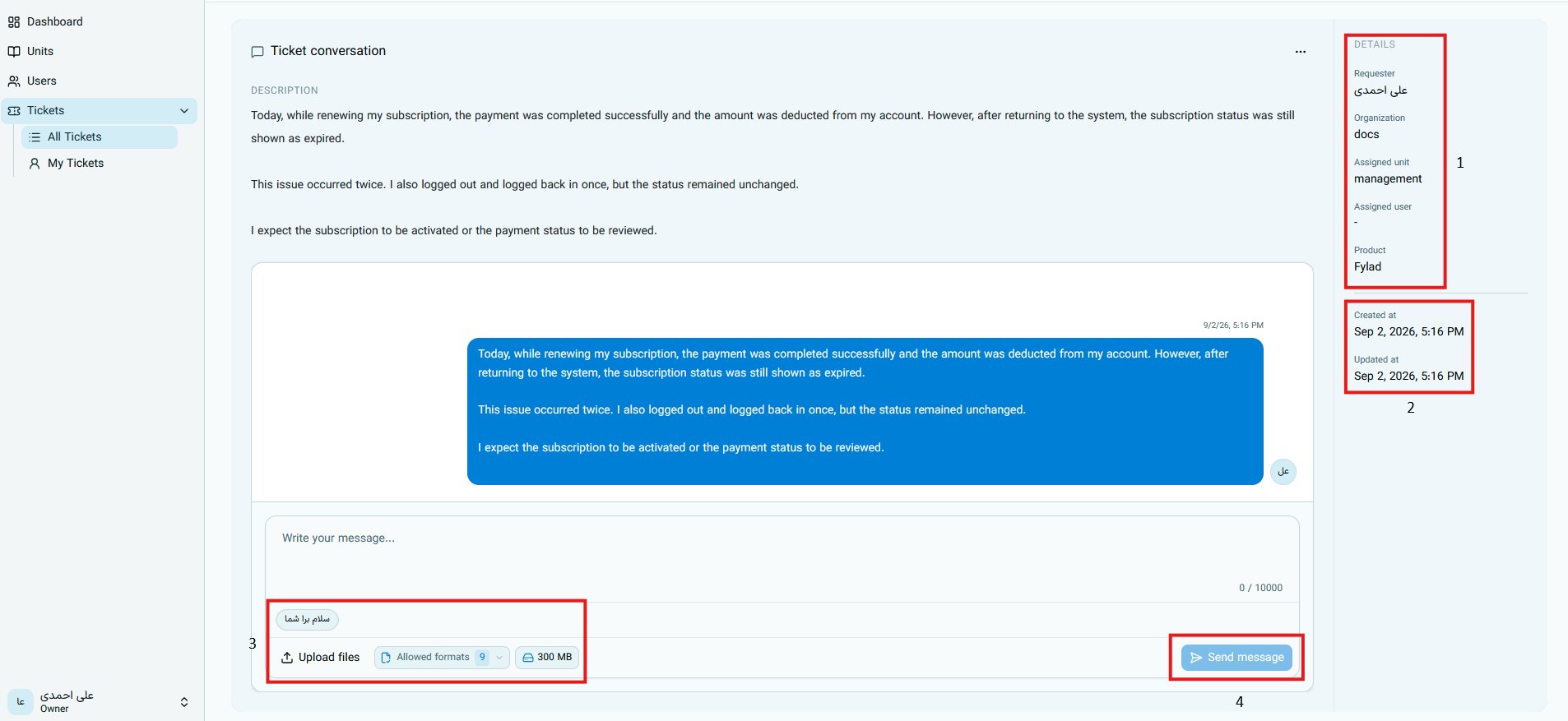
In the image below, the important sections of the page are marked with numbers:
Initial Ticket Description
The text you wrote in the Description field when creating the ticket is displayed at the beginning of the page as the first conversation message.
This description should include the explanation of the issue, current result, expected result, and actions you tried before submitting the ticket.
Creation and Update Dates
Two timestamps are displayed in this section:
- Creation date: The initial registration time of the ticket, which does not change later.
- Update date: Updated when an effective activity occurs on the ticket, such as assigning a specialist, sending a message that changes the status, or directly changing the status.
By comparing these two dates, you can tell whether new activity has occurred on the ticket after its creation.
Prepared Reply
Phrases such as Hello are prepared replies. By selecting them, you can use predefined text to write messages faster.
Review the text before sending and add information related to your request. Sending a generic response alone may not provide enough information for the specialist to continue handling.
Writing and Sending a Message
To send a new message:
- Enter your text in the Write your message... box.
- If needed, select the relevant image, report, or file using the Upload Files option.
- Compare the file format and size with the information next to the upload button.
- Click the Send Message button.
- Wait until the message is displayed in the conversation, and avoid clicking the send button multiple times.
Important Notes When Sending Messages and Files
- Use the conversation of the same ticket to continue the same issue, and do not create a new ticket.
- If the specialist has asked a specific question, send all requested items in one complete response.
- When sending an error image, keep the error text and the relevant part of the page clear.
- Check the file format and size before uploading.
- If you have a new file for the initial description, send it along with a fresh message; it is not possible to add files to the initial ticket message.
Do not include passwords, access keys, banking details, or other confidential information in messages or files.
Assigning the Responsible Specialist
After the ticket is accepted by the support team or assigned to a specialist, their name is displayed in the Assigned specialist section.
Ticket Status Changes
The ticket status indicates who needs to take the next action. The typical status flow is as follows:
"New" Status
Immediately after submission, the ticket status is New. In this state, no responsible specialist has been assigned yet.
If you send another message before a specialist is assigned, the message is recorded in the conversation; however, as long as no responsible specialist is assigned, the ticket status usually remains New.
"Waiting on Specialist" Status
After the ticket is accepted or assigned, the status changes to Waiting on Specialist. This means the request is with the support team, and you must wait for the specialist to review or respond.
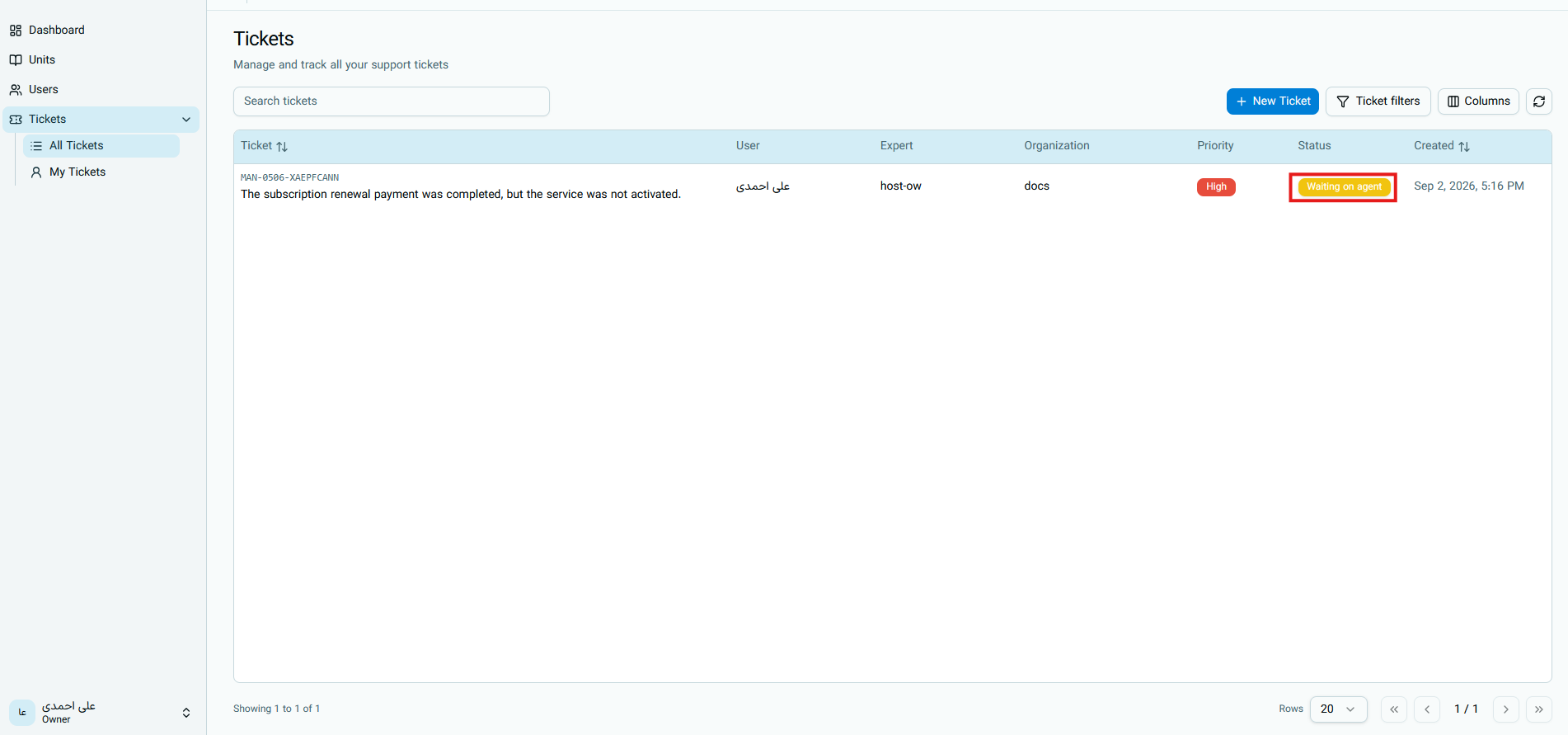
After assigning the responsible specialist, whenever you send a new message, the ticket status changes to Waiting on Specialist. This allows the specialist to know that a new message or information has been submitted by you.
"Waiting on User" Status
When the specialist sends you a message, the ticket status changes to Waiting on User.
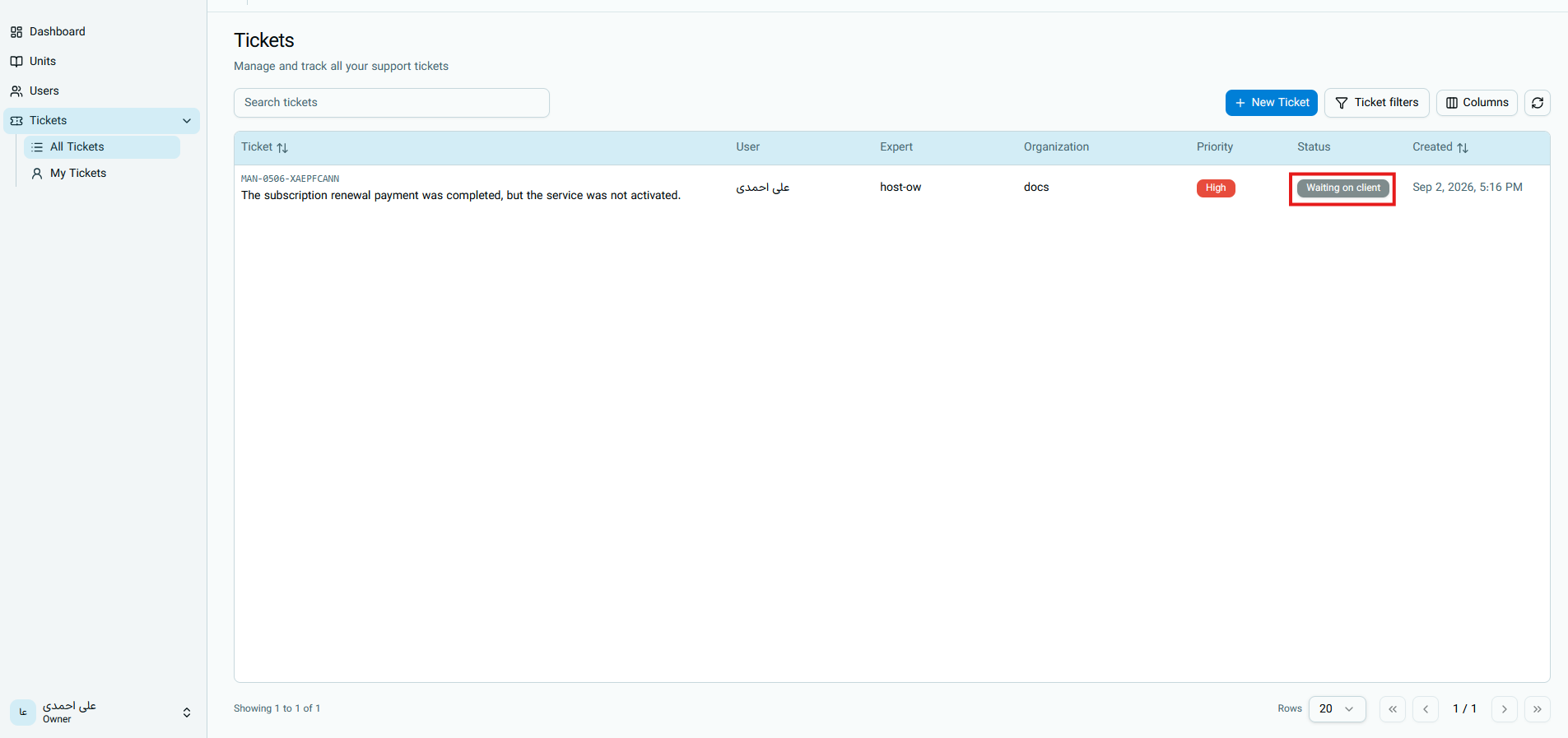
This status means that further handling depends on your response or information. Open the ticket conversation, read the specialist's message completely, and send the requested response or files.
After sending your response, the status returns to Waiting on Specialist.
Ticket Statuses
| Status | Meaning for User | How It Changes |
|---|---|---|
| New | Ticket is registered and does not yet have an assigned specialist | Created upon ticket submission |
| Waiting on Specialist | The support team needs to review your request or new message | Activated upon ticket acceptance or when you send a message |
| Waiting on User | Further handling requires your response or information | Activated when the specialist sends a message |
| Suspended | Handling has been temporarily paused | Performed by an authorized role |
| Completed | Handling has concluded or the ticket is closed | Performed by the requester, an authorized user, or after a period of inactivity |
"Suspended" Status
In the Suspended status, handling is temporarily paused. Sending a message while suspended does not change the status on its own. To resume handling, an authorized user must move the ticket out of suspension.
"Completed" Status
If the issue is resolved, the original requester can close the ticket. Closing the ticket changes its status to Completed, while the conversation history remains preserved.
An accepted ticket that has had no activity for 30 days may also be automatically completed. Tickets with a New status are not subject to this automatic completion.
If the ticket conversation is still active, sending a real message in a completed ticket can return it to the appropriate waiting status:
- A user's message changes the status to Waiting on Specialist.
- A specialist's message changes the status to Waiting on User.
Messages That Do Not Change the Status
The following items do not automatically change the status on their own:
- The initial description registered when creating the ticket.
- System messages related to logging events and changes.
- Messages sent prior to assigning a responsible specialist.
- Messages sent while the ticket is in the Suspended status.
Send each reply within the conversation of the same ticket so that the entire request history remains in one place and the specialist can track the problem's progress accurately.