Organizational Unit Management
In this section, you will learn how to view, create, and edit organizational units. Units help you shape the internal structure of your organization (such as departments, teams, and branches) for more precise user management and routing of requests and tickets.
Click here to view a summary of role permissions in this guide.
What Is an Organizational Unit?
An organizational unit is a part of your organization's internal structure; such as a branch, department, support team, sales division, finance, or information technology.
Organizational units help ensure that:
- Users are categorized into specific groups.
- Responsibilities are divided within the organization.
- Tickets and requests are directly routed to the relevant department (for example, financial tickets go to the finance unit).
Prerequisites
To work with the units section, you need the following:
- You must be logged into the system and your account must be active.
- To create a new unit and view the list of units, you must be the Owner or Admin of the organization.
A Unit Manager is not allowed to create a new unit and can only edit information for the specific unit they manage.
Access Path to Units
Log in to the system → Units → Create Unit → Fill in the Form → Save
Viewing Units
To access this section, navigate to Units from the system menu.
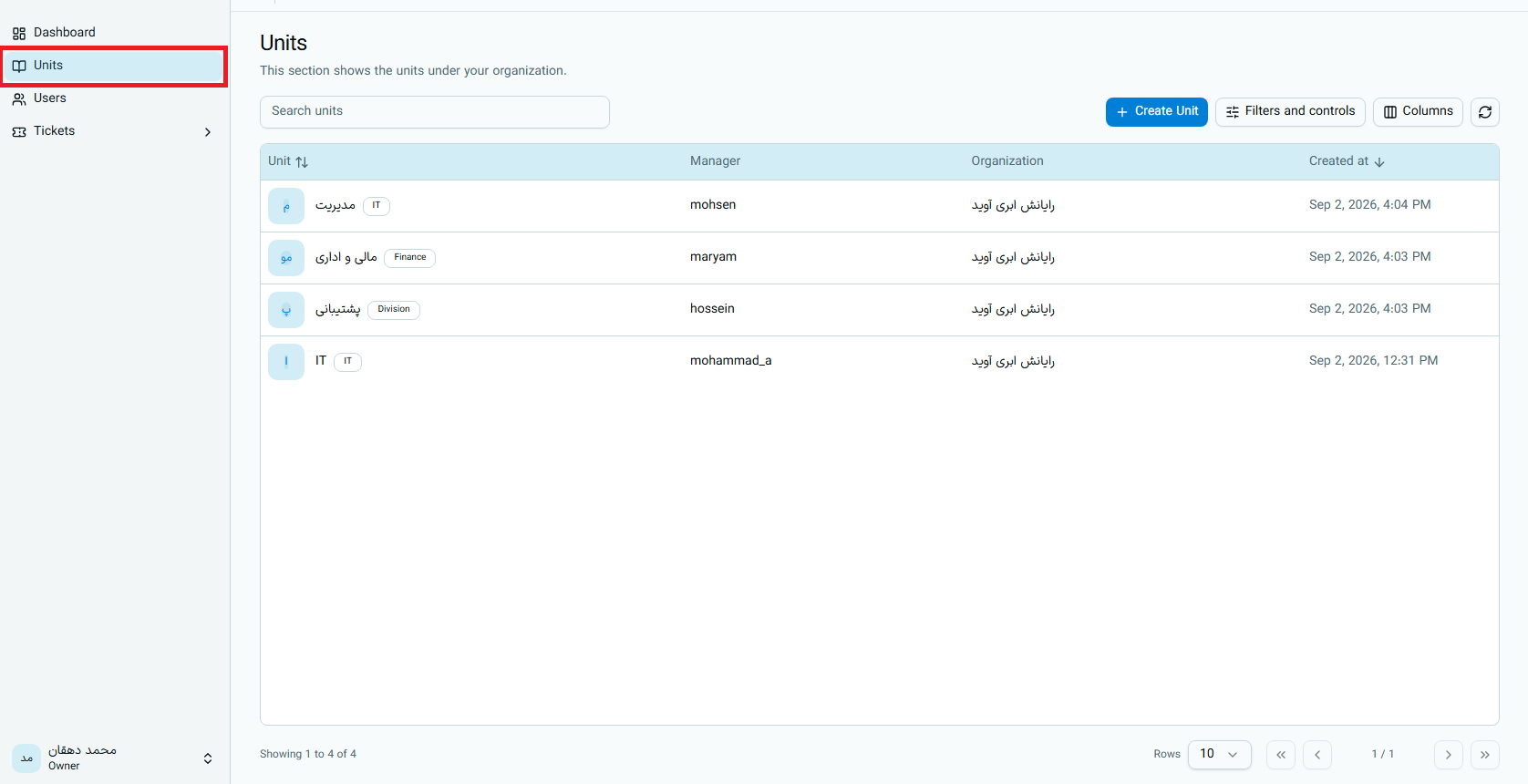
- Unit List: Displays the unit names, their types, and the manager of each unit.
- Unit Details: By clicking on any unit, you can view more complete details such as its avatar, parent unit, unit manager, and communication channels for that department.
Creating a New Unit
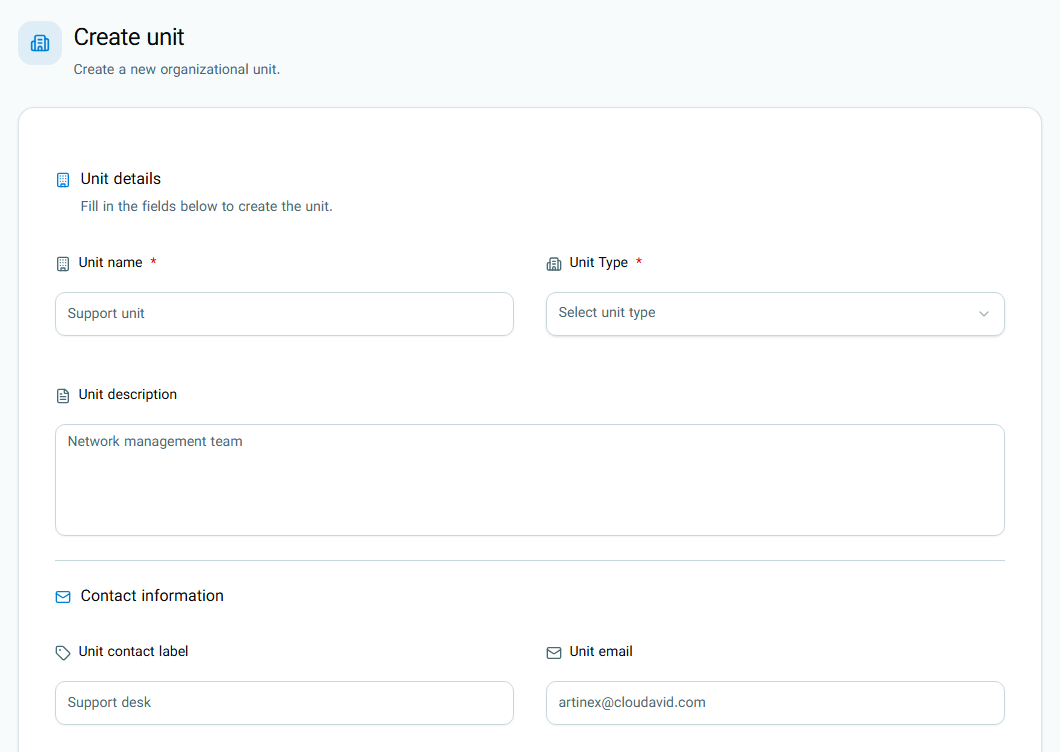
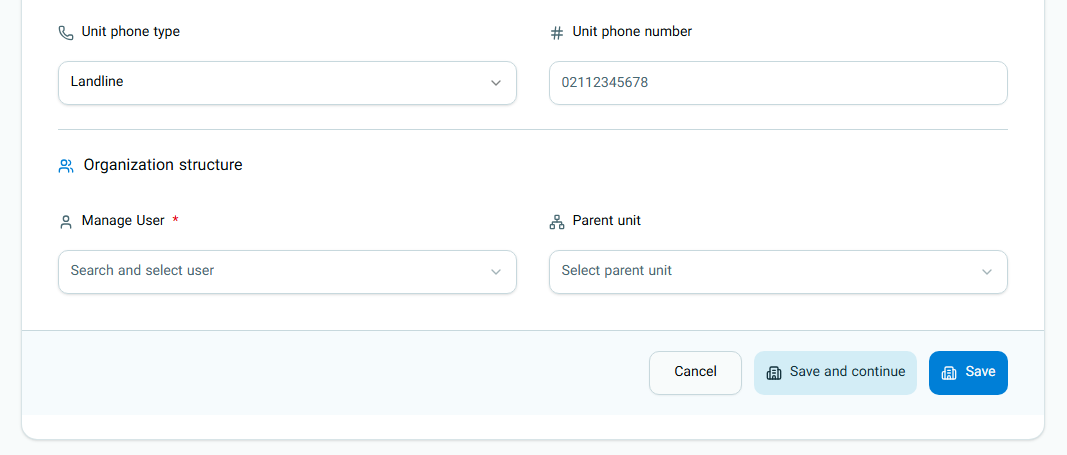
Unit Name
The unit name is the main title of that department (such as Support, Sales, Central Branch). This name must not be duplicate within your organization, and filling it in is required.
Unit Manager
You must select a supervisor or manager for each unit.
- A user cannot manage multiple units at the same time. If someone is already the manager of a unit, you cannot select them for a new unit.
- If the selected user's role is Expert, Member, or Viewer, their role will change to Unit Manager upon being selected as the manager of the new unit.
- If the selected user's role is Admin and they are not managing another unit, their role will be retained and will not change to the Unit Manager role.
Unit Type
The unit type specifies the nature of that department (such as Department, Branch, Call Center, or Warehouse). This categorization assists with searching and reporting in the system.
If you select the unit type as "Branch", registering both Email and Phone Number is mandatory.
Parent Unit (Sub-unit)
If you want this unit to be a sub-unit of a larger department, you can select the parent unit. For example, the "Network Team" can be a sub-unit of the "Information Technology Unit". This field is optional.
Editing a Unit
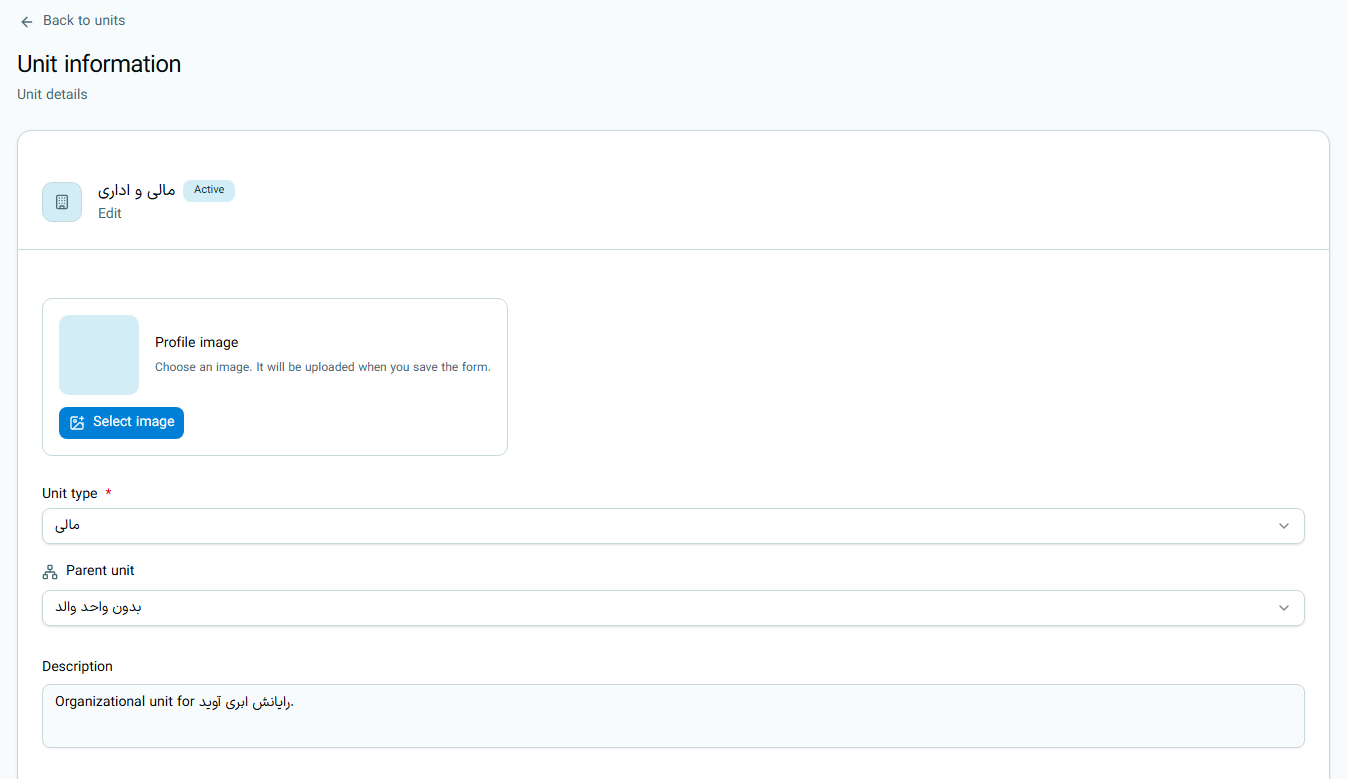
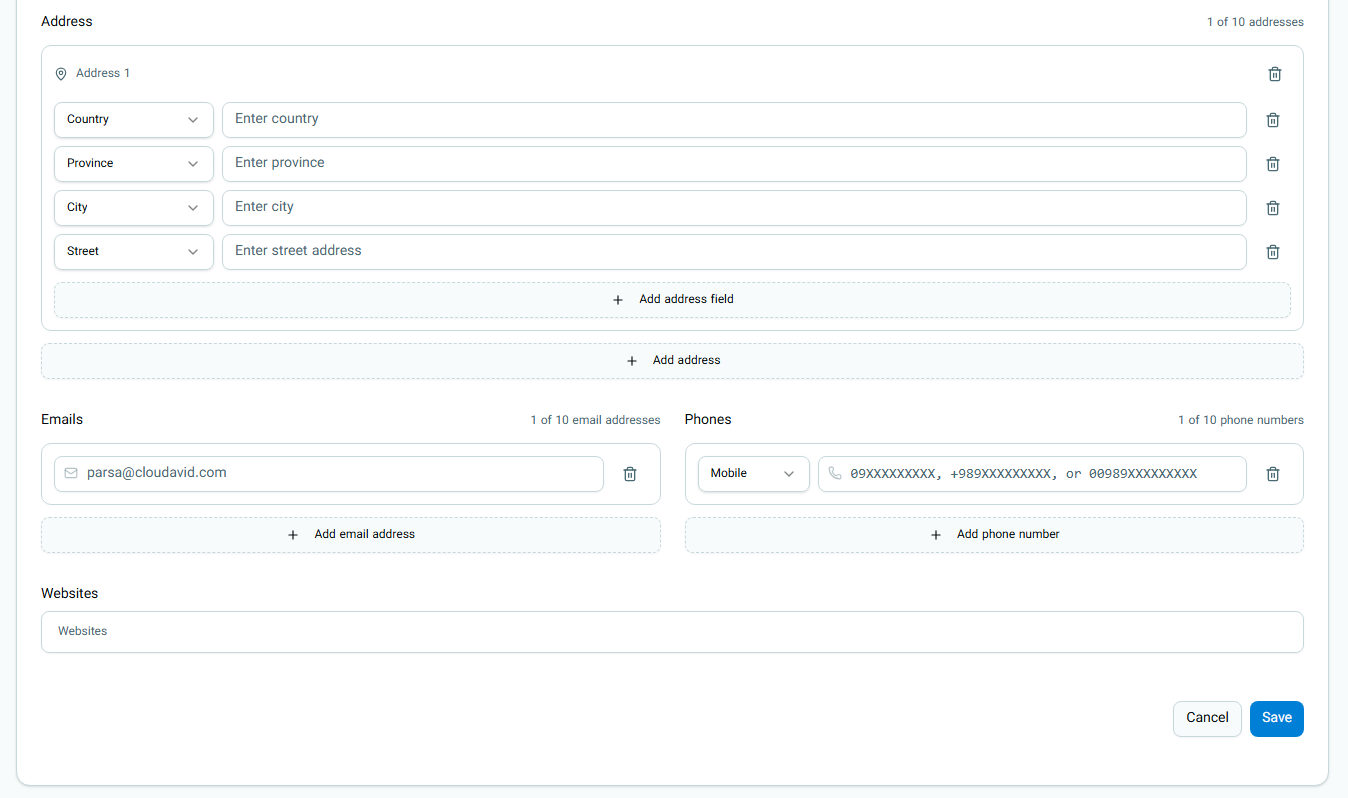
- The Organization Owner and Admin can edit all units in the organization.
- The Unit Manager can only edit their own unit.
In the edit form, you can change the following:
- Unit avatar
- Unit type and parent unit
- Description
- Contact information (Email, Phone Number, Website, Address)
In the edit form, the Unit Name and Unit Manager cannot be changed.
Role Permissions Overview at a Glance
| Role | View All Units | Create Unit | Edit Units |
|---|---|---|---|
| Owner | Yes | Yes | Yes |
| Admin | Yes | Yes | Yes |
| Unit Manager | No | No | Yes (Own unit only) |
| Expert, Member, Viewer | No | No | No |
For more information about access level limitations, read the User Access Levels guide.