User Dashboard Guide
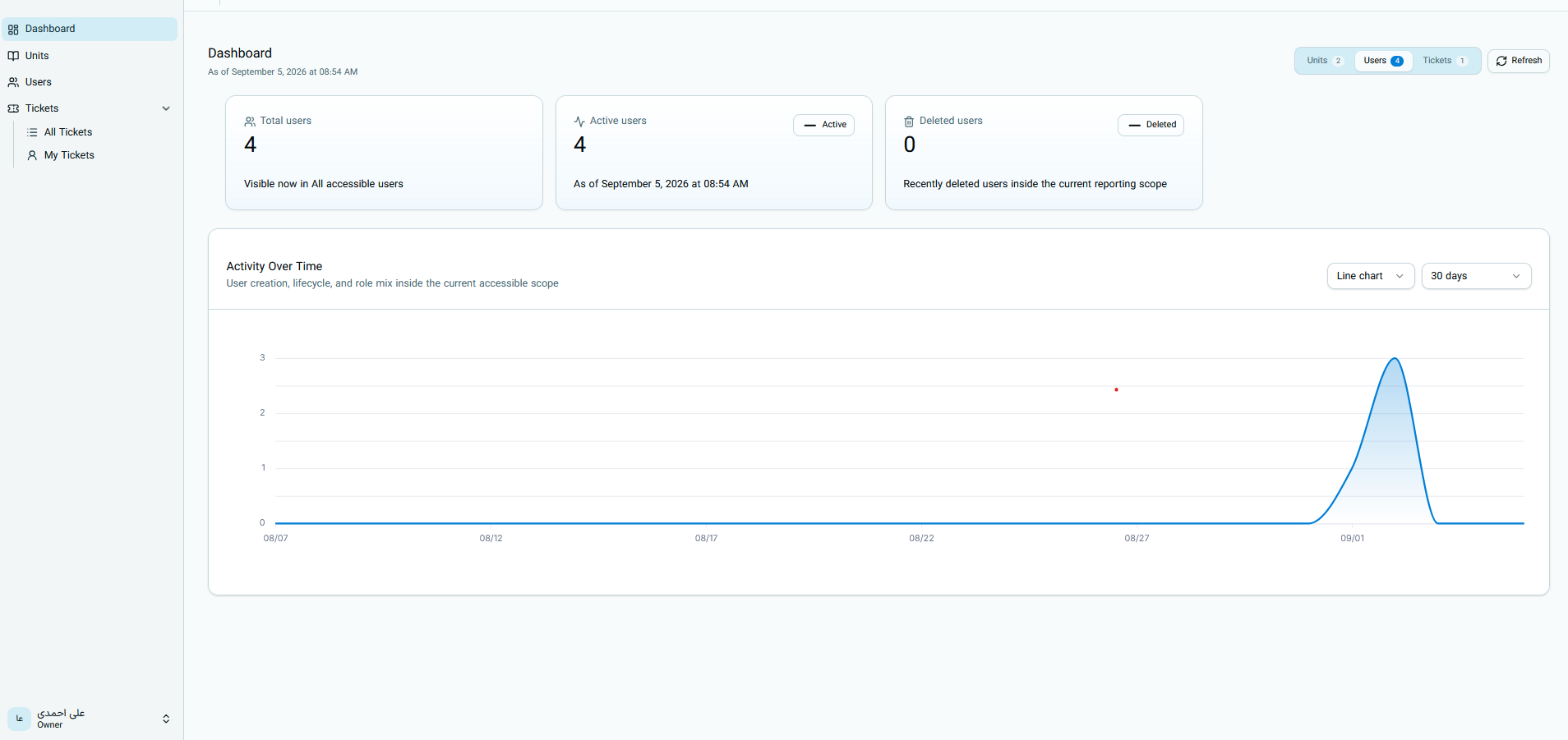
The user dashboard provides a summary view of user counts, active users, deleted users, and the user creation trend over time.
Information on this page is displayed based on the current account's access scope. For this reason, a system administrator, organization administrator, and unit manager may see different statistics.
Opening the User Dashboard
From the system menu, open Dashboard, and select the Users option at the top of the page.
The number next to the Users option shows the number of users visible to you. To fetch the latest statistics, click the Refresh button.
Main User Metrics
The cards at the top of the page show the overall user status:
| Metric | Meaning |
|---|---|
| Total users | Number of all users within your access scope |
| Active users | Number of accounts that are currently active |
| Deleted users | Number of accounts that have been deleted |
Activity Over Time Chart
The Activity Over Time section displays the statistical trend of users in the selected range. This chart can be used to view changes in user counts or user creation across different days.
An increase in the chart on a date indicates that recorded activity related to users increased at that time; for example, new accounts were created.
Chart Settings
There are two options at the top of the chart:
| Option | Usage |
|---|---|
| Chart type | Change data display style; for example, a line chart |
| Time range | Set the statistical period; for example, the last 30 days |
By changing the time range, only information from that specific period is displayed in the chart. If there is no activity during part of the period, the chart remains at zero.
Important Notes About User Statistics
- Dashboard numbers are based on data visible to the current account.
- Selecting a time range affects the chart, but the Total Users card shows the current value.
- Creating, activating, deactivating, or deleting users can change the page statistics.
- To receive new information, use the Refresh button.
- This dashboard is for viewing statistics, and user information cannot be edited from inside the chart.
Continue the Guide
- Ticket Dashboard
- User Dashboard — current page
- Unit Dashboard
Previous guide: Ticket Dashboard
Next guide: Unit Dashboard