User Profile
The Profile section in ArtiNex allows you to manage your account information, change your password, and customize the application's appearance to match your preferences.
On this page, you can view and, if you have access, edit your personal and organizational details, set a new password for your account, and personalize the application's language, display mode, and primary color.
Accessing Your Profile
To access the Profile section, use the user menu in the bottom corner of the screen and select the "Profile" option.
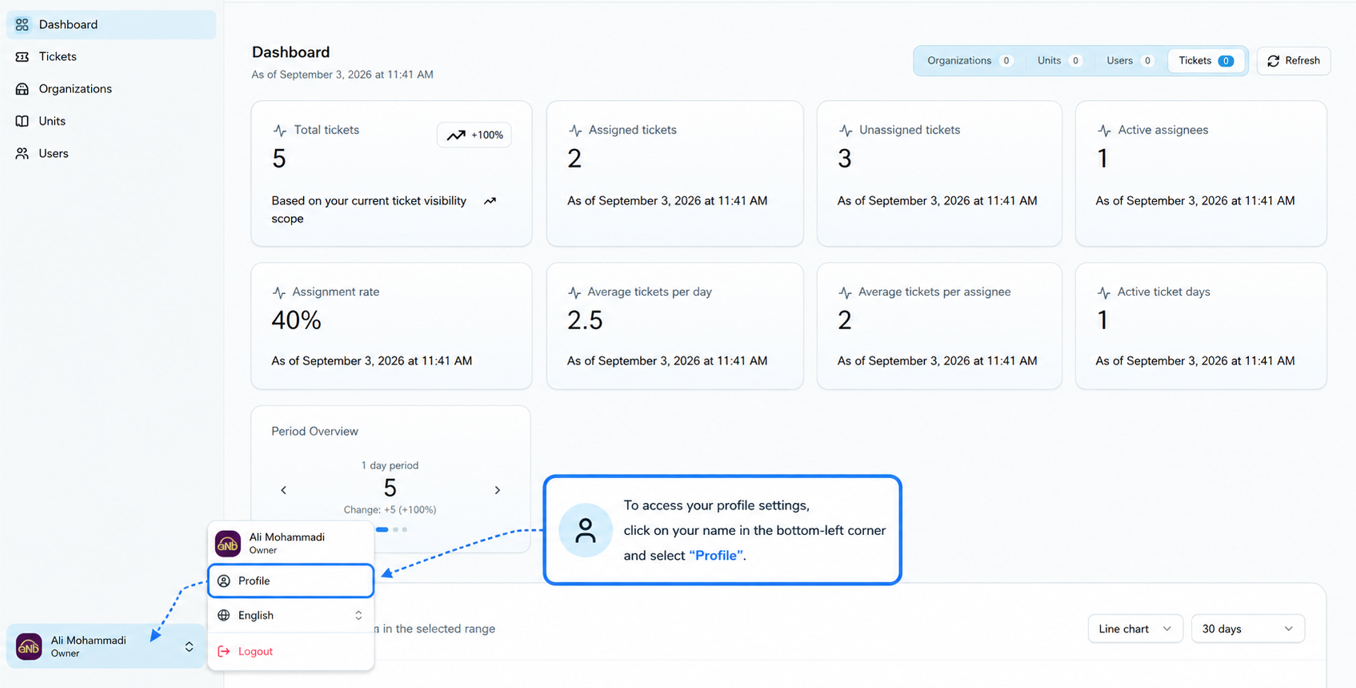
Main Sections of the Profile
The user profile consists of three main sections that centralize all your account settings in one place.
- Personal: View and manage user information, phone number, email, and complete unit and organization details.
- Security: Change and reset your account password while complying with security requirements.
- Appearance: Full application personalization, including changing language, display theme (light/dark), and color palette.
Personal Section
The Personal section displays your account information along with the related organizational details.
User Information
In this section, you can view and manage your personal details:
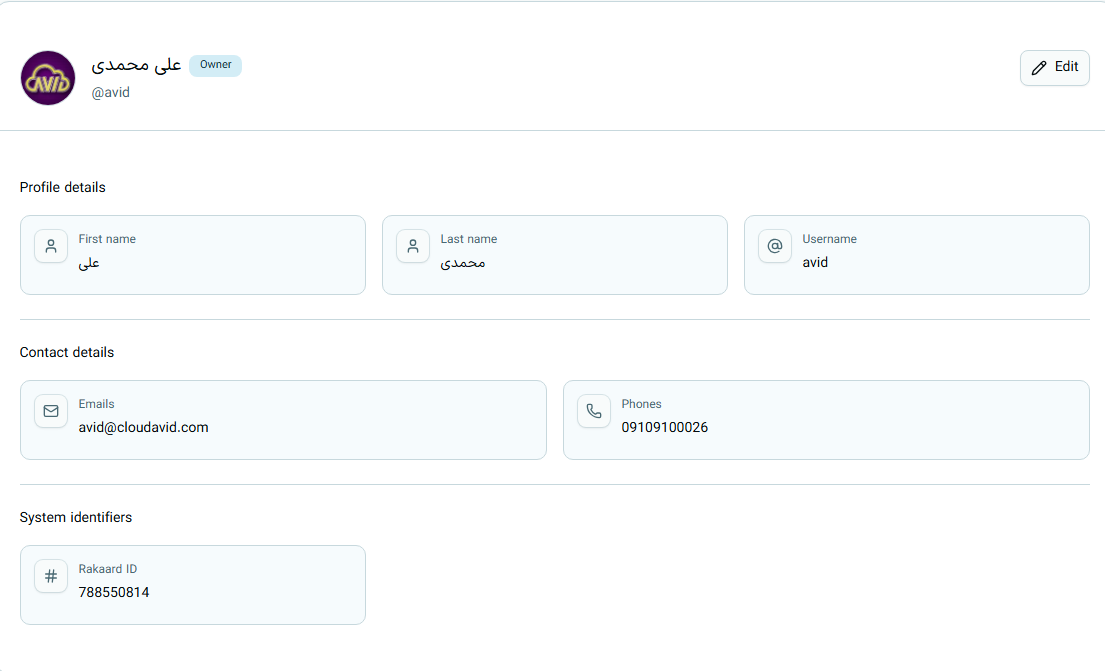
To edit editable information, simply click the "Edit" option.
Organization Information
In this same section, information about the organization or unit you belong to is also displayed:
This information helps you view the organization's details and your position in it at a glance.
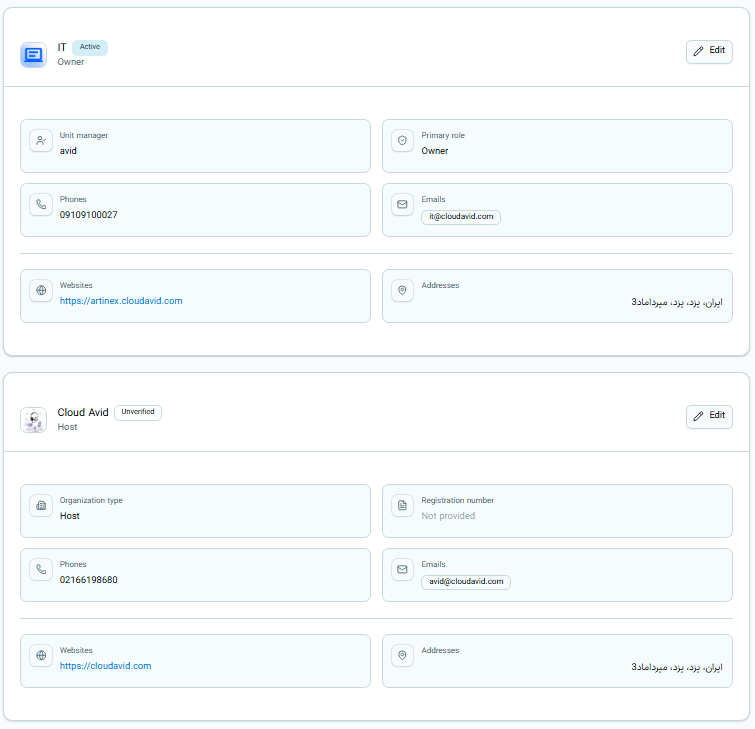
Some information may not be editable by you and can only be modified by the Organization Administrator or Organization Owner.
Security Section (Change Password)
In the Security section, you can change your user account password.
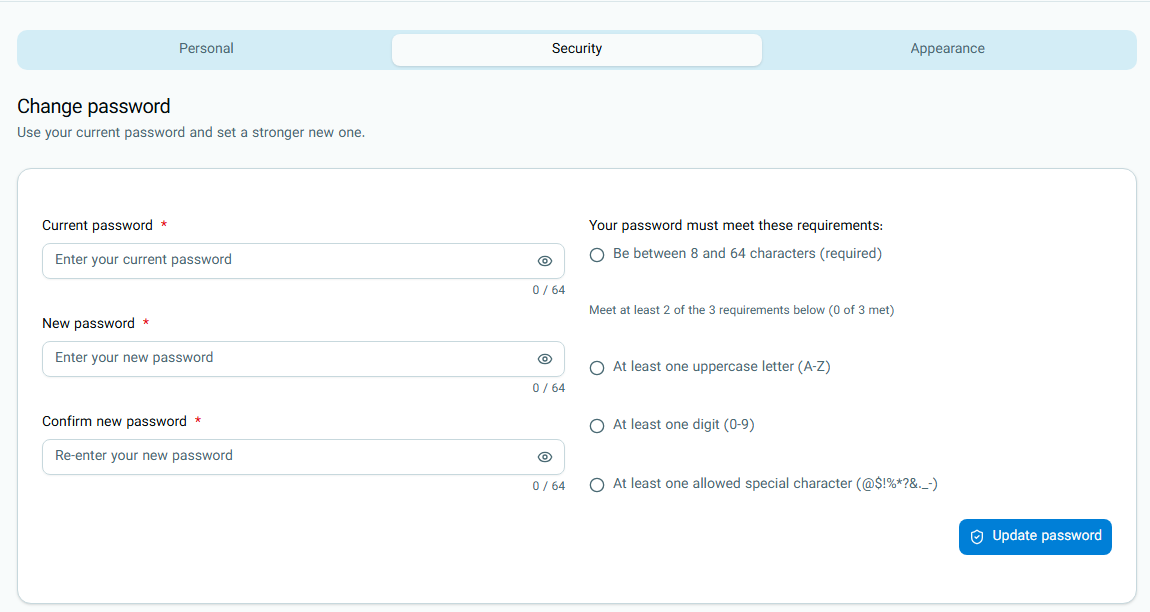
Appearance Section
In the Appearance section, you can customize ArtiNex to match your personal preferences. These settings include language, display mode, and the primary color of the application.
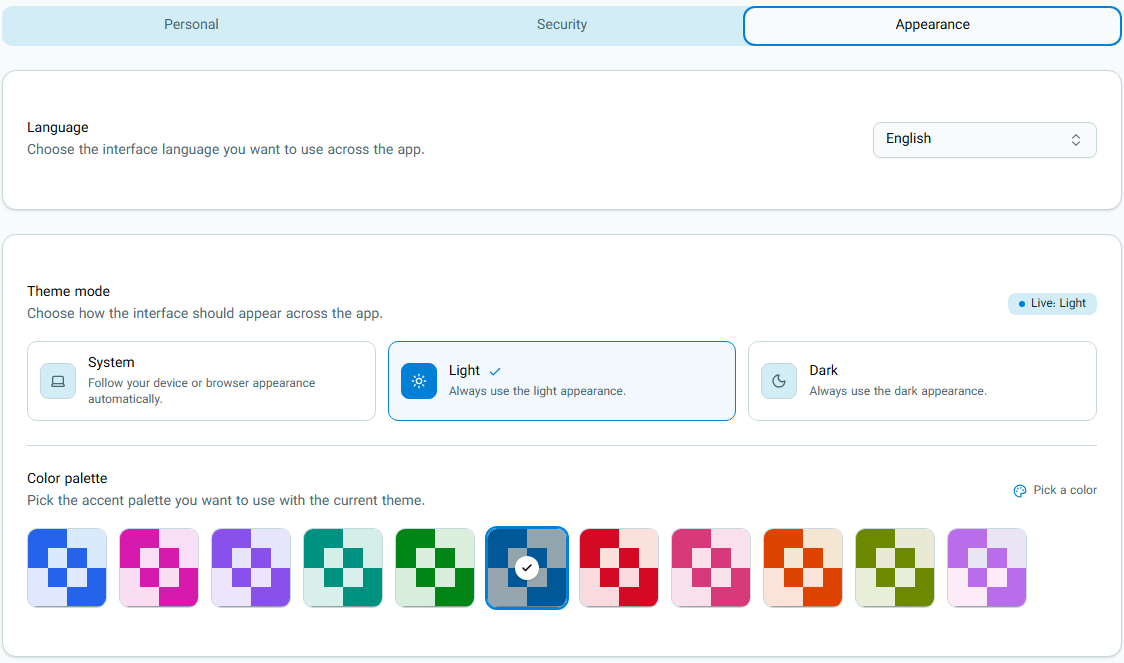
Language
By changing the language, texts and various menus throughout the application will be displayed in the selected language.
Display Mode
- System: The application's appearance automatically matches your device's settings.
- Light: The application is always displayed in light mode.
- Dark: The application is always displayed in dark mode.
You can choose the desired mode to match your work environment or personal preference.
Color Palette
In the Color Palette section, you can choose the primary color of the ArtiNex interface from several predefined colors.
Frequently Asked Questions
Will my profile changes affect other users?
No. Your personal information and appearance settings apply only to your own account and have no effect on other users in the organization.
Why can't I edit some fields in the organization information?
Some organization information can only be edited by the Organization Administrator or Organization Owner. If you need to change this information, contact your organization administrator.
What happens if my new password does not meet the requirements?
The system will not allow the password to be registered and will display the required conditions on the same page so that you can choose a suitable password.